XML to JSON
Paste an XML document and get JSON: attributes become @name, repeated elements become arrays, and a malformed document is reported with its line and column.
XML to JSON is a free tool that converts XML text into JSON in your browser. Paste an XML document into the text box, and the JSON appears with a check of whether the XML is well-formed. No sign-up is needed.
The tool follows a fixed set of rules for turning XML elements, attributes and text into JSON properties, so you can predict the output. It reports errors with a line and column number and a short explanation, which helps you fix broken XML before you use the result. You can start from one of five presets, such as a book catalog or a file with entities and CDATA sections, or paste your own XML. Copy the JSON or download it when it is ready.
How to use the XML to JSON
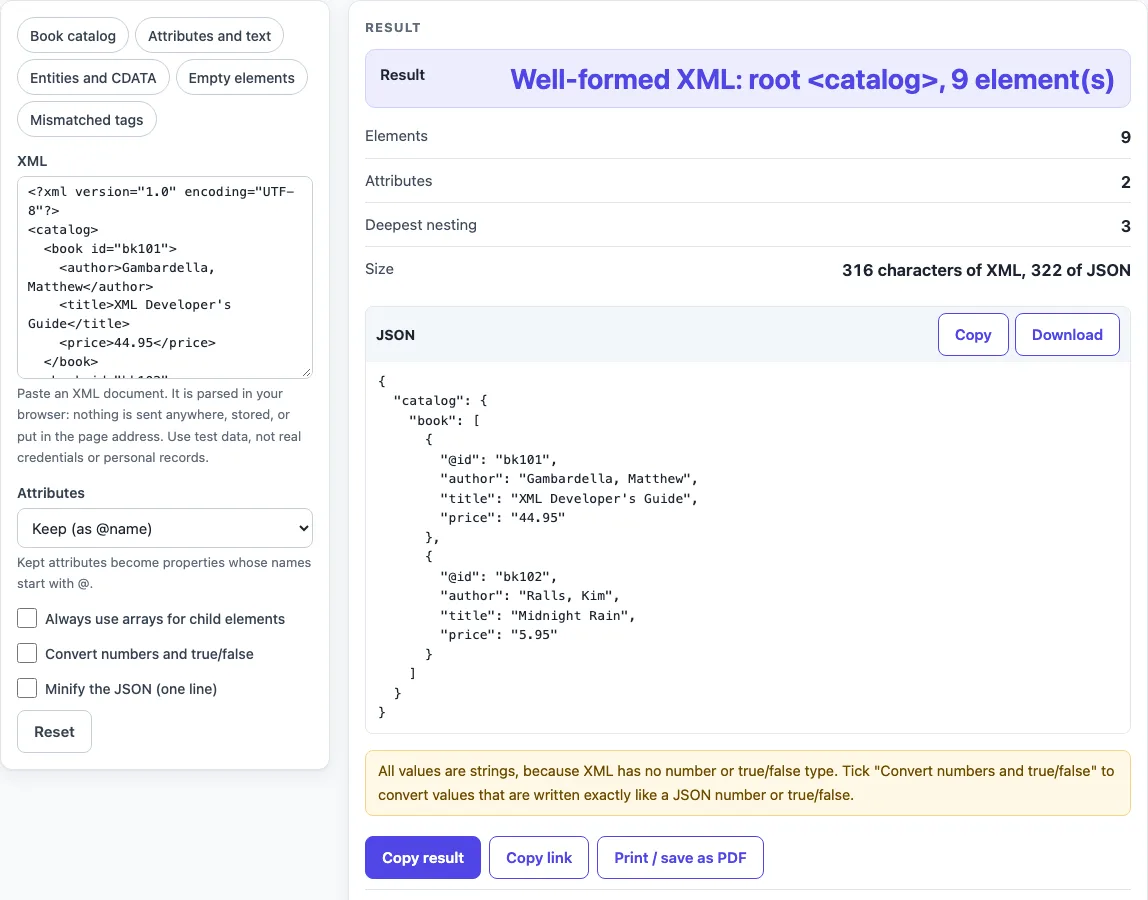
- Paste your XML into the XML text box. The tool opens with a small book catalog, so you can see the output before you use your own data.
- Or pick a preset: Book catalog, Attributes and text, Entities and CDATA, Empty elements or Mismatched tags. The mismatched-tags preset shows what an error message looks like.
- Set Attributes to Keep (as @name) to keep attributes as properties, or to Drop to leave them out.
- Tick Always use arrays for child elements if you want single children wrapped in arrays, so the shape stays the same when a document has one item instead of several.
- Tick Convert numbers and true/false if you want numeric and boolean-looking values converted to JSON numbers and booleans.
- Tick Minify the JSON (one line) if you want the output on a single line.
- Read the JSON block, then check the Result rows: well-formed status, root element name and element count. Also check Elements, Attributes, Deepest nesting and Size.
- Click Copy to copy the JSON, or Download to save it as a file.
If the XML is not well-formed, the tool shows the line, column and reason. Fix that location and the result updates.
How are XML attributes shown in JSON?
With Attributes set to Keep (as @name), each XML attribute becomes a property whose name starts with @. For example, <book id="bk101"> becomes "@id": "bk101" inside the book object. Set it to Drop and the attributes are removed from the result.
If an element has both attributes and text, or both attributes and child elements, the text goes into a property called #text. In the user example <note lang="en">Wrote the first program.</note>, the result is an object with "@lang": "en" and "#text": "Wrote the first program.". Namespace prefixes stay as written, so ns:name keeps its prefix and xmlns:ns becomes @xmlns:ns. The tool does not resolve namespaces, so it does not look up what a prefix means.
How does XML to JSON handle repeated elements?
Sibling elements with the same name become one array under that name. Two <book> elements inside <catalog> become "book": [ ... ] with two objects in the array. A single <book> stays a plain object unless Always use arrays for child elements is ticked, which keeps the shape the same whether there is one item or many.
An empty element becomes null, the JSON empty value. The <debug/> element in the config example becomes “debug”: [null] when arrays are ticked. Whitespace-only text is dropped, and other text is trimmed. Text between child elements, called mixed content, is joined into #text, and the tool warns you that the position of that text is lost.
Sources (checked 2026-10-18): W3C, Extensible Markup Language (XML) 1.0, Fifth Edition. The JSON shape (@name for attributes, #text for text, arrays for repeats) is this tool’s own convention; XML defines no JSON mapping.
Worked examples
| Input | Result |
|---|---|
| <?xml version="1.0" encoding="UTF-8"?> <catalog> <book id="bk101"> ... | { "catalog": { "book": [ { "@id": "bk101", "author": "Gambardella, Matthew", "title": "XML Developer's Guide", "price": |
| <user id="42" active="true"><name first="Ada" last="Lovelace"/><not... | { "user": { "@id": "42", "@active": "true", "name": { "@first": "Ada", "@last": "Lovelace" }, "note": { "@lang": "en", " |
| <msg from="a&b">Tom & Jerry <3 ☺ <![CDATA[<raw> &... | { "msg": { "@from": "a&b", "#text": "Tom & Jerry <3 ☺ <raw> & text" } } |
| <config><debug/><port>8080</port><tags><tag>a</tag></tags></config> | { "config": { "debug": [ null ], "port": [ 8080 ], "tags": [ { "tag": [ "a" ] } ] } } |
Calculated by the tool above; open it with the same values to see each step.
Frequently asked questions
How do I convert XML to JSON?
Paste your XML into the XML box, choose your Attributes setting and any checkboxes, then copy or download the JSON from the result block. If the XML has an error, the tool shows its line and column so you can fix it first.
Why are all values strings after converting XML to JSON?
XML has no number or boolean type, so every value is read as text and stays a string by default. Tick Convert numbers and true/false to turn values such as 12 into numbers and the exact words true and false into booleans. A value such as 1.50, 007 or 1e3 stays a string, because writing it back as a number would change the text.
What makes XML well-formed?
XML is well-formed when it follows the syntax rules of the W3C XML 1.0 specification. Every opening tag needs a matching closing tag, attribute values must be in quotes and contain no <, and each attribute name must be unique within its tag. There must be one root element, and text cannot sit outside it. Entity references must be one of the five predefined ones (<, >, &, ", ') or a numeric reference.
Is my XML uploaded anywhere?
No. The conversion runs in your browser. The XML is not uploaded, stored or put in the page address.
What happens to comments and the XML declaration?
Comments, processing instructions and the XML declaration (<?xml ...?>) are dropped from the JSON. A DOCTYPE is skipped with a warning, and entities defined in it are not expanded.
Can I convert JSON back to XML?
No. This page only converts XML to JSON; there is no JSON to XML direction.
Related tools
- JSON Schema Generator: use it to create a schema that describes the shape of a JSON document, such as the output from this tool.
- JSON Schema Validator: use it to check whether a JSON document matches a schema.
- OpenAPI Validator: use it to check an OpenAPI description for errors.
- Base64 to JSON Decoder: use it when your JSON data is encoded in Base64.
- cURL to Python Converter: use it to turn a cURL request into Python code.
- API and developer tools: use it to find other tools for working with APIs and data formats.